How to Choose a Mobile Workstation?
Choosing a Mobile Workstation is less about buying the biggest numbers and more about matching hardware to real work. A 3D artist, engineer, and data scientist may all need high performance, but their workloads differ. One may need certified graphics drivers; another may value memory capacity, sustained processor speed, or a color-accurate display. Details matter. So does the software you use every day.
IDC forecast that AI PCs would reach 167 million shipments in 2027, nearly 60% of global PC shipments. This is a broad PC-market forecast, not a mobile-workstation sales estimate. Still, it signals changing expectations for local computing. NVIDIA founder and CEO Jensen Huang described the wider shift: “The computer industry is going through two simultaneous transitions — accelerated computing and generative AI.” His comment appeared in NVIDIA’s 2024 GTC announcements. For buyers, the practical question is which workloads must run locally, and which can rely on remote services.
This guide will help you compare processors, professional GPUs, memory, storage, displays, ports, and battery life. It will also explain how to weigh ISV certification and benchmarks such as SPECviewperf. A benchmark can narrow your options, but it cannot fully reproduce your project files, plugins, or daily workflow. I would question any recommendation based on one score alone. A bright screen in a showroom may still disappoint under office lighting; a fast laptop may throttle during a long render. Choose for the work you actually do, and leave room for the compromises you may discover only after purchase.
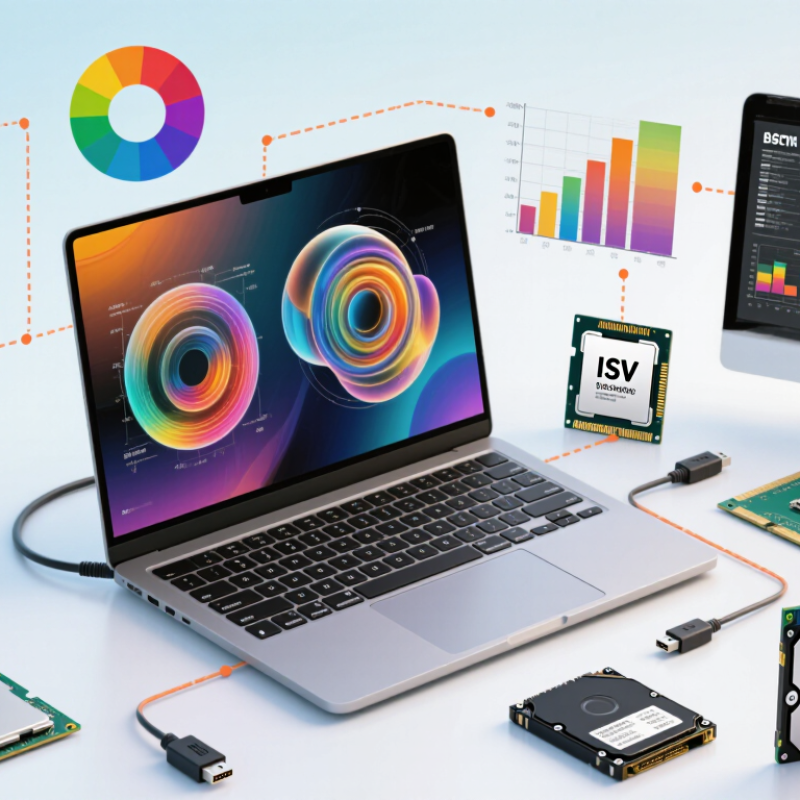
Define Workloads and Review ISV Certification and SPECworkstation 4.0 Results
Choosing a mobile workstation starts with the work it must sustain, not a processor label. List the applications, file sizes, and tasks you use each week. A designer handling large assemblies may need certified graphics drivers and ample memory. A researcher running simulations may care more about sustained processor performance and cooling. Video editors should test their usual footage, effects, and export settings. Write down the heaviest task, too. That is often where a thin laptop struggles.
Check ISV certification for the exact application and version you rely on. Certification signals that a configuration has been tested for compatibility; it does not guarantee faster work or flawless results. Then review SPECworkstation 4.0 scores by workload category, rather than treating one overall number as decisive. Compare systems with similar memory, graphics, and power settings, and note whether results reflect sustained performance. A brief benchmark run may not show what happens after a long render, when fans grow loud or performance drops. Benchmarks are useful, but imperfect. Your project files and daily workflow remain the better test.
Match CPU, GPU, and RAM to CAD, Rendering, and AI Workloads
For CAD, prioritize a fast CPU core and enough memory for smooth model edits. Rebuilding a complex assembly can feel sluggish even when the graphics processor is powerful. SPEC’s SPECworkstation 4.0 benchmark report separates tests across product development, media, and other workloads, reflecting how performance depends on the task. Check benchmarks for your actual software, not just headline processor speeds.
Rendering shifts more work to the GPU, but scene size matters. A detailed interior with high-resolution textures can exceed graphics memory; then rendering may slow or fail. For AI, match GPU memory and system RAM to the model and dataset you use. IDC’s 2024 Worldwide AI and Generative AI Spending Guide projected global AI spending would reach $632 billion by 2028. That forecast signals growing investment, not a guarantee that every mobile workstation needs a top-tier accelerator.
Leave headroom. A practical CAD system might pair a strong CPU with a midrange GPU and 32 GB of RAM; larger assemblies or local AI models may need 64 GB or more. Check whether memory is upgradeable before buying. Cooling also matters: sustained rendering can reduce performance in a thin chassis. Peak speed looks neat on paper. Real workloads are messier, and I’d verify sustained benchmark results before paying extra.
How to Choose a Mobile Workstation?
Match CPU, GPU, and RAM to CAD, Rendering, and AI Workloads
The chart compares practical planning targets, with each resource normalized independently to its highest target. Example targets: CAD—8 CPU cores, 8 GB GPU VRAM, 32 GB RAM; rendering—16 CPU cores, 12 GB GPU VRAM, 64 GB RAM; AI—12 CPU cores, 16 GB GPU VRAM, 64 GB RAM. Actual needs vary with project size, software, and model.
Compare Display Resolution and Color-Gamut Coverage in sRGB and DCI-P3
When choosing a mobile workstation, compare resolution and color coverage together. A 3840 × 2160 display contains about 8.3 million pixels; 1920 × 1080 has about 2.1 million. That extra detail helps with fine image retouching and dense timelines, but it also makes interface text smaller. On a 15-inch screen, scaling settings matter as much as the pixel count. More pixels are not always better.
Color-gamut figures need careful reading. IEC 61966-2-1 defines the sRGB color space, widely used for web content. DCI-P3, specified for digital cinema, covers a broader range of saturated colors. A workstation rated at 100% sRGB can suit web design, while higher DCI-P3 coverage can help with cinema-oriented work. Check the measurement method: gamut coverage is not the same as color accuracy. Independent display-testing methodologies, such as RTINGS’ published monitor tests, report these as separate measures. Ask for both coverage and calibration results, ideally with a stated color difference value. A glossy screen can also make colors look punchier than they are. I’d treat a coverage percentage as a starting point, not a promise.
How to Choose a Mobile Workstation? - Compare Display Resolution and Color-Gamut Coverage in sRGB and DCI-P3
| Representative Display Configuration | Resolution | Approx. Pixel Density
(16-inch screen) | Typical sRGB Coverage | Typical DCI-P3 Coverage | Best Suited For |
| Entry-level IPS LCD | 1920 × 1200 (WUXGA) | About 141 ppi | About 60–65% | About 44–50% | Office applications, coding, and general productivity where color-critical work is not a priority. |
| Standard IPS LCD | 2560 × 1600 (WQXGA) | About 189 ppi | About 95–100% | About 70–80% | Mixed professional workloads, detailed documents, and general photo editing for the web. |
| Wide-gamut IPS LCD | 2560 × 1600 (WQXGA) | About 189 ppi | About 95–100% | About 90–100% | Photo editing, digital illustration, and design work that benefits from a wider color range. |
| High-resolution wide-gamut LCD | 3840 × 2400 (UHD+) | About 283 ppi | About 95–100% | About 90–100% | Fine-detail review, high-resolution imagery, and color-conscious creative work; higher resolution can use more power. |
| Wide-gamut OLED | 3840 × 2400 (UHD+) | About 283 ppi | Typically close to 100% | Typically close to 100% | Color-rich creative content and deep blacks; check brightness behavior, reflections, and burn-in coverage for the specific device. |
Values are representative ranges, not specifications for a particular computer. Actual gamut coverage varies by panel, calibration, and measurement method. For professional color work, check the exact configuration’s measured coverage and color accuracy, and confirm that its color-management workflow supports the intended sRGB or DCI-P3 output.
Assess Portability by Weight, Battery Capacity in Wh, and Runtime
Portability is more than the number on a laptop’s specification sheet. Weigh the workstation with its charger, and note how often you carry it between rooms or job sites. A two-kilogram device may feel manageable on a desk but tiring in a packed shoulder bag. The charger matters too. A bulky power brick can erase the convenience of a lighter computer.
Check battery capacity in watt-hours (Wh), but treat it as a clue, not a runtime promise. A larger capacity can support longer use, yet a bright display, demanding software, and sustained processing all draw more power. Compare capacity alongside the manufacturer’s runtime estimate, then look for independent testing that reflects similar workloads. Numbers alone can mislead.
Think about your actual day. Will you edit large files away from an outlet, or mostly work near a desk? Try a realistic session: set your usual screen brightness, open your typical applications, and note the battery drop over an hour. That test is imperfect. So is any single estimate. Still, it can reveal whether a claimed all-day battery suits your routine, or only a lighter workload. A few minutes of testing helps.
Verify Ports, Upgradeability, and USB-C PD 3.1 Support up to 240 W
A mobile workstation should match the equipment you actually carry. Count the ports needed for an external display, wired network, storage, and a graphics tablet. IDC’s January 2025 preliminary tracker recorded 262.7 million PC shipments worldwide in 2024, up 1% year over year. That broad market figure cannot predict your workflow, but it underlines why practical connectivity still matters. Check the exact port specifications, not just the connector shapes.
USB-C PD 3.1 can deliver up to 240 W through its Extended Power Range, according to the USB Implementers Forum specification. Reaching that ceiling requires compatible devices, a suitable cable, and a charger rated for the needed power. Not every USB-C port does. Confirm whether the workstation accepts power through that port, and whether charging reduces performance under heavy workloads. A quick desk test helps: connect the charger, display, and storage together, then check for charging warnings or dropped connections.
Upgradeability deserves the same scrutiny. Look up the service manual and confirm whether memory and storage are replaceable; thin designs may solder memory in place. Check supported capacities, slot counts, and access requirements before buying. A tiny screw can become a big delay. I would also leave some room for uncertainty: manufacturer documentation can lag behind hardware revisions, so verify the exact configuration’s port and upgrade details before ordering.